Attention
This is the documentation for an older version. See the latest documentation for current information.
3. Sign in#
Open the URL of your intdash domain (e.g.
https://example.intdash.jp) in your web browser.The URL is different for each intdash domain; if you have not received a URL, user name, or password, please contact your administrator.
When the sign-in screen appears, enter your user name or registered e-mail address and your password.
Depending on the environment, the [Tenant ID] box may also appear on the sign-in screen. In that case, enter the tenant ID instructed by the administrator. If you leave the [Tenant ID] box blank, you will be signed in to the default tenant.
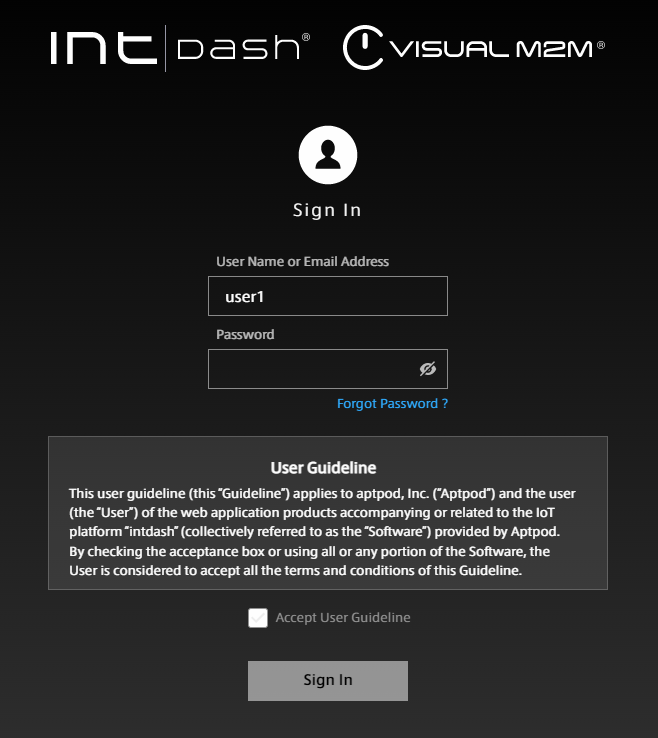
Fig. 55 Sign in to intdash#
Read the User Guideline, select [Accept User Guideline], and then click [Sign In].
The Project Console is displayed.
Click [Details] for the project you want to use.
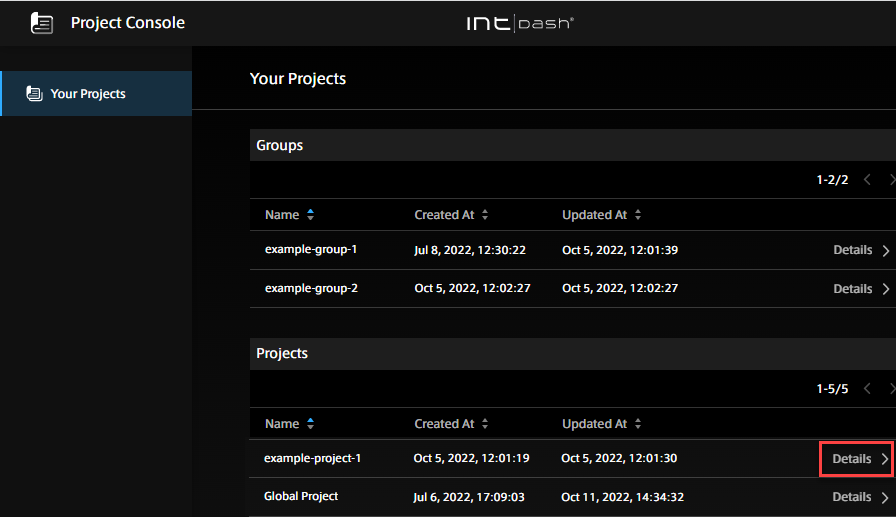
Fig. 56 List of projects#
From the list of applications, click Data Visualizer.
Note
When signing in for the first time
If you are signing in with a password issued by the administrator (temporary password), you will need to set a new password yourself. Please follow the on-screen instructions.
Note
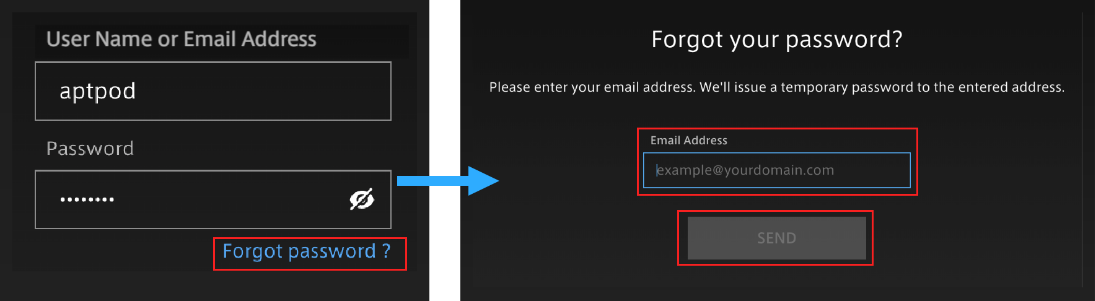
If you forgot your password
If you forgot your password, reset your password.
Click "Forgot password?".
Enter the email address of your account in the [Email Address] field.
Click [SEND]. An email will be sent to your email address containing a link you can use to reset your password. You can reset your password from the link.